Gradebook Overview
What is the Gradebook?
The Gradebook is where you can view and mark submissions from students, including tests and assignments, and manage their grades. The Gradebook is accessed via the link on the top of your Blackboard site.
Blackboard are updating the Gradebook this summer. From Friday 7 August 2026 the Gradebook will change to improve the overall experience, making key features easier to find and use.
The current four Gradebook tabs (Overview, Markable Items, Marks, Students) will be replaced with two views:
- List View. This is a direct replacement for the ‘Markable Items’ tab. If you are familiar with this view, there are no changes to the functionality.
- Grid View. This is a key change (essentially a reorganisation of the current Marks page), with a new layout and navigation, and a new Grades Details panel bringing grading information and actions into a single place. There are also changes to the grade entry workflow and how grades are posted.
Please watch the following videos demonstrating the changes.
- Gradebook | Navigation and Layout (01:46)
- Gradebook | Column Header and Assessment Details Panel (03:22)
- Gradebook | Filter (01:09)
- Gradebook | Student Display and Name Options (01:29)
- Gradebook | Manual Grade Entry and Posting Grades (01:39)
- Gradebook | Accommodations, Exceptions, and Exemptions (02:01)
You can find further information using Blackboard's Gradebook Guidance, though please note Sheffield Hallam University does not use the Mastery system, so you should not use the page titled "Mastery In Gradebook"
Navigating the Gradebook
Blackboard provides a useful explanation of the different ways of using the Gradebook and what can be done in different sections.
Accessing student work
In the List View, clicking on the text in the Marking Status column will bring you to the Submissions page - the text in Marking Status will be underlined when you hover your mouse over. From the Submissions page, clicking on a row will open the student's work - it will turn grey as you hover your mouse over.
In the Grid View, new submissions will be marked with a purple dot. Clicking on that will open a panel on the right where you can click View Submission to access the work.
You can find more information, along with other ways to access student work on Blackboard's help page on the topic.
Filtering and searching
In the Grid View you can use the Search box at the top to search by student name, student ID, column (item) name, or category. To the right of that, looking like three horizontal lines with small rectangles on them you can apply Filters to show all of the assessments that meet certain criteria. The criteria are the same as for the Search box with the addition of summative/formative. Once you apply a filter, it appears as a removable chip next to the filter icon in the toolbar. Select the X on a chip to remove that filter without reopening the window. To clear everything at once, open Filters and views and select Clear All.
Posting marks
To release grades to students, you will need to Post grades. This can be done in a number of different ways, a full list is available on Blackboard's help page on the topic.
Rearranging assessments order in Gradebook
In List view, use the Up/Down arrows on the right to move markable items up or down. The order in Grid view will be the same as the one in List view.
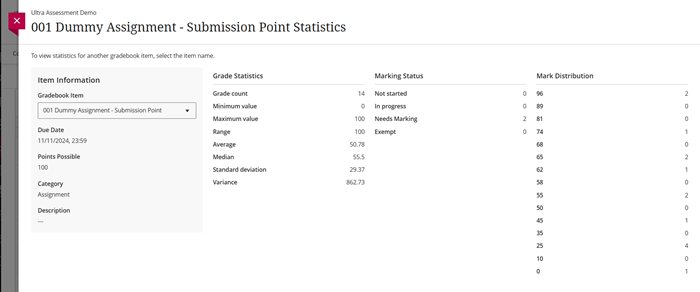
View graded item statistics
Statistical information can be helpful to module leaders when producing end of year module reports.
To gain insight about a student's overall performance on graded content, select a column in the List view of Gradebook and click statistics, in the three dots at the right hand end
The statistics page displays key metrics such as:
- Minimum and maximum value
- Range
- Average
- Median
- Standard deviation
- Variance